The Mobile Audio Removal Challenge
Most videos today are recorded on phones. And most of those videos have audio problems: wind noise at the beach, conversations in the background at a restaurant, HVAC hum in an office. The irony is that while phones are great at capturing video, they are also great at capturing every unwanted sound in a 10-foot radius.
When I built Remove Audio, I made mobile support a priority from the start. Not an afterthought, not a scaled-down version, but a full-featured tool that works in your phone's browser. Because if the problem happens on your phone, the solution should work there too.
Here is every method available for muting videos on mobile, starting with the fastest and working through platform-specific native options.
"I tested Remove Audio on over 30 different phones before I was satisfied with the mobile experience. If it does not work on a three-year-old Android phone in Chrome, it does not ship."
The Universal Method: Browser-Based Audio Removal
This works on every phone with a modern browser. iPhone, Android, Samsung, Pixel, OnePlus, older budget phones. If it can run Chrome or Safari, it can mute your video.
The whole process takes about 30 seconds for a typical phone-length video. I have optimized the tool specifically for mobile browsers, which have tighter memory constraints than desktop. It handles videos up to several hundred megabytes on most modern phones, though very large files (4K, 10+ minutes) might need to be trimmed first.
The reason I recommend this method first is that it works everywhere and requires nothing. No app to install, no account to create, no storage space consumed by yet another video editing app. You mute your clip and move on.
- Open your phone's browser (Safari on iPhone, Chrome on Android, or whatever you prefer) and go to remove-audio.com.
- Tap the upload area and select your video. You can pick from your camera roll, files app, or recent downloads.
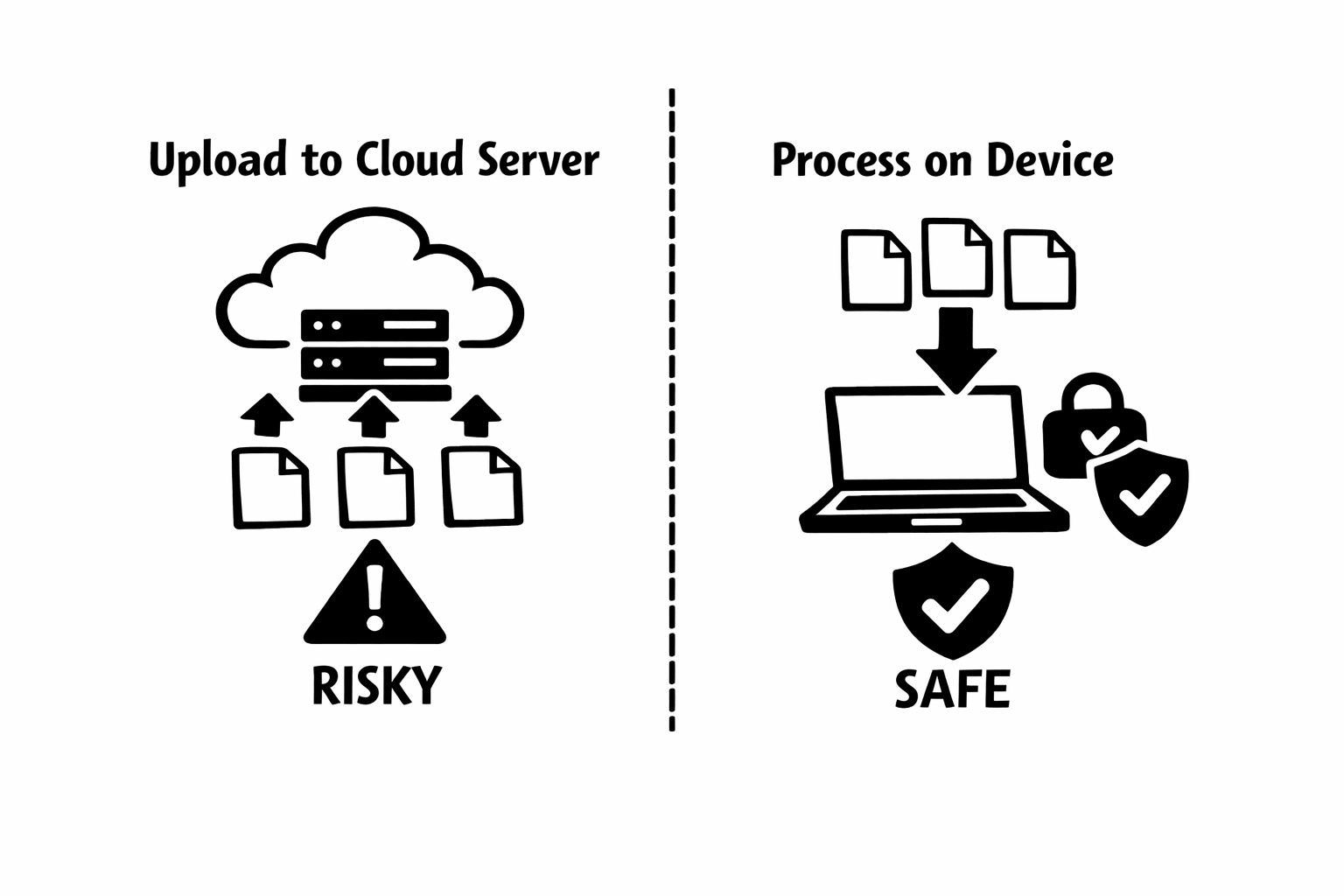
- Tap Remove Audio. Processing happens entirely on your phone using WebAssembly. Your video is not uploaded to any server.
- Download the muted file when processing finishes. On iPhone, it typically saves to the Files app. On Android, check your Downloads folder.
iPhone: Using the Photos App
If you are on an iPhone running iOS 13 or later, the Photos app has a built-in mute feature that is surprisingly well hidden.
This is genuinely one of the best-hidden features in iOS. I have talked to iPhone users who have had their phone for years and never knew this existed. It is fast, it preserves quality, and it is reversible.
The limitation is that it only works within the Photos app on your iPhone. If you need a permanently silent file to share or upload to another platform, the browser tool gives you a standalone muted file that works anywhere.
- Open the Photos app and find your video.
- Tap Edit in the top right corner.
- Look for the yellow speaker icon in the top left. Tap it. When a line appears through the speaker, the audio is muted.
- Tap Done to save. The change is non-destructive; you can edit again and re-enable audio if needed.
Android: Using Google Photos
Most Android phones come with Google Photos, which includes basic video editing with an audio mute option.
The Google Photos method works well on most Android phones, but the interface varies slightly across manufacturers and Android versions. Samsung Gallery, Xiaomi Gallery, and other manufacturer apps have similar features, usually accessible through their own edit functions.
If your specific phone's gallery app does not have a mute option, the browser tool at remove-audio.com is your fastest alternative. It works identically regardless of your phone manufacturer or Android version.
- Open Google Photos and find the video you want to mute.
- Tap the Edit icon (usually looks like sliders or an adjustments icon).
- Look for a speaker icon in the editing controls. Tap it to toggle audio off.
- Tap Save Copy. Google Photos creates a new muted version without overwriting the original.
Which Method Should You Use?
For a quick mute of a video you are about to post: use your phone's native method (Photos app on iPhone, Google Photos on Android). It is the fewest taps.
For a clean, permanently silent file: use the browser tool. It produces a standalone file with the audio track completely removed, not just muted. This matters if you are sharing the file, uploading to multiple platforms, or sending it to someone else to edit.
For batch processing multiple videos: the browser tool again. You can queue up to 20 files and mute them all in sequence. No native phone app offers this.
Mobile-Specific Tips
- Close other browser tabs before processing large videos. Mobile browsers have limited memory, and other tabs compete for resources.
- If your phone warns about storage space, check your Downloads folder. Muted videos accumulate there and are easy to forget about.
- For videos recorded in 4K, consider whether you actually need 4K resolution for your intended use. A 1080p version processes faster and uses less memory.
- On iPhone, if Safari's download goes to the Files app and you want it in your Camera Roll, open Files, find the video, tap Share, and choose Save Video.
- Process videos right after recording while they are easy to find. It only takes 30 seconds and saves you from digging through your gallery later.
"The best video tool is the one you already have with you. Your phone's browser is more powerful than you think."
Troubleshooting Mobile Issues
Processing seems stuck: On older phones, large videos can take a minute or two. Wait for the progress bar to finish before assuming something is wrong. If it genuinely stalls, try reloading the page and using a shorter clip.
Cannot find the downloaded file: On iPhone, check the Files app under Downloads. On Android, check the Downloads folder in your file manager. Some browsers let you choose the save location; check your browser's download settings.
Video quality looks different after muting: This should not happen with the browser tool since it does not re-encode. If you notice quality changes, make sure you downloaded the file correctly and are not playing a compressed preview. The native phone methods also preserve quality in most cases.
Your Phone Can Handle This
You do not need a computer or a dedicated app to mute videos. Every modern phone has the capability built in, either through native apps or through the browser. The method you choose depends on your specific needs, but the result is the same: a clean, silent video ready for whatever comes next.
I built Remove Audio with mobile users as a first-class audience because that is where most video is created and consumed. If your phone can record a video, it can mute one too. Open a browser tab, drop in your clip, and you are done in 30 seconds.
Have a phone model or situation where none of these methods work? I would love to hear about it. Reach out through the contact page and I will figure out a solution.
Mute Video
Strip every audio track from a video. Free, in your browser, no upload.
Open toolMOV to MP4
Turn iPhone MOV clips into MP4 that plays everywhere. Instant, in your browser.
Open toolCompress Video
Shrink a video to fit Discord, WhatsApp or email size limits. Free on this device, in your browser.
Open tool